 Splayer
Splayer User Guide
Getting Started
When you first open Splayer, grant media permissions and select the folders containing your music and videos. Splayer will scan them. Just tap a track or video to play.
Library
The Home tab shows your Recently Played, Newly Added, and Playlists. The Music and Video tabs show all media on your device.
You can easily add or remove folders.
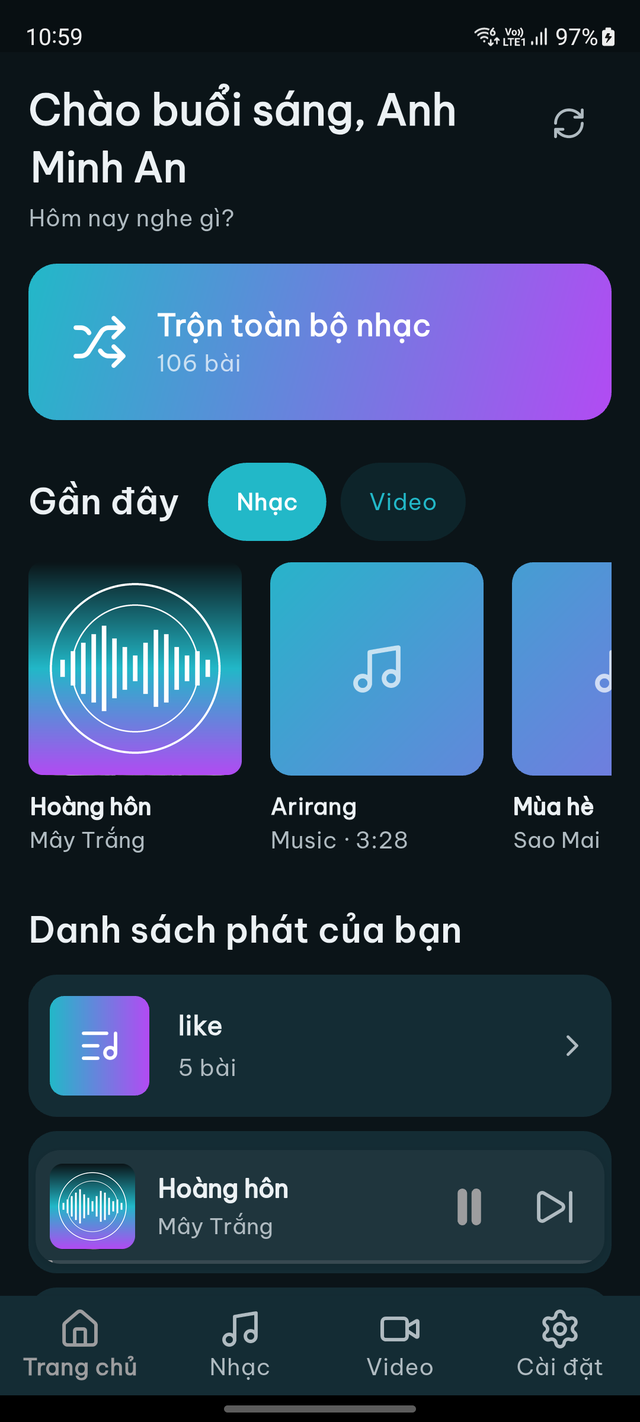
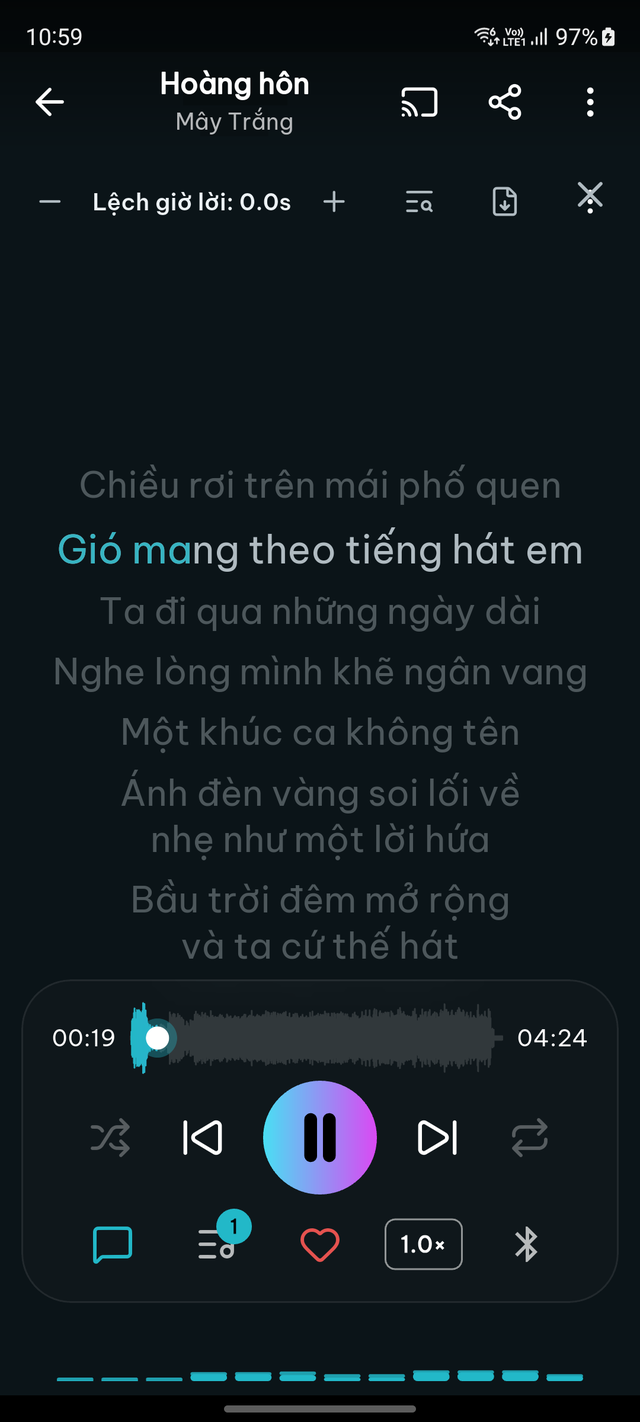
Playing Music & Now Playing
In the Now Playing screen, you can manage the Queue, toggle Repeat, and turn on Shuffle.
Lyrics
Swipe to the Lyrics tab on the Now Playing screen. You can auto-fetch lyrics online or import an .lrc file from your device. Synced lyrics will follow the music automatically.
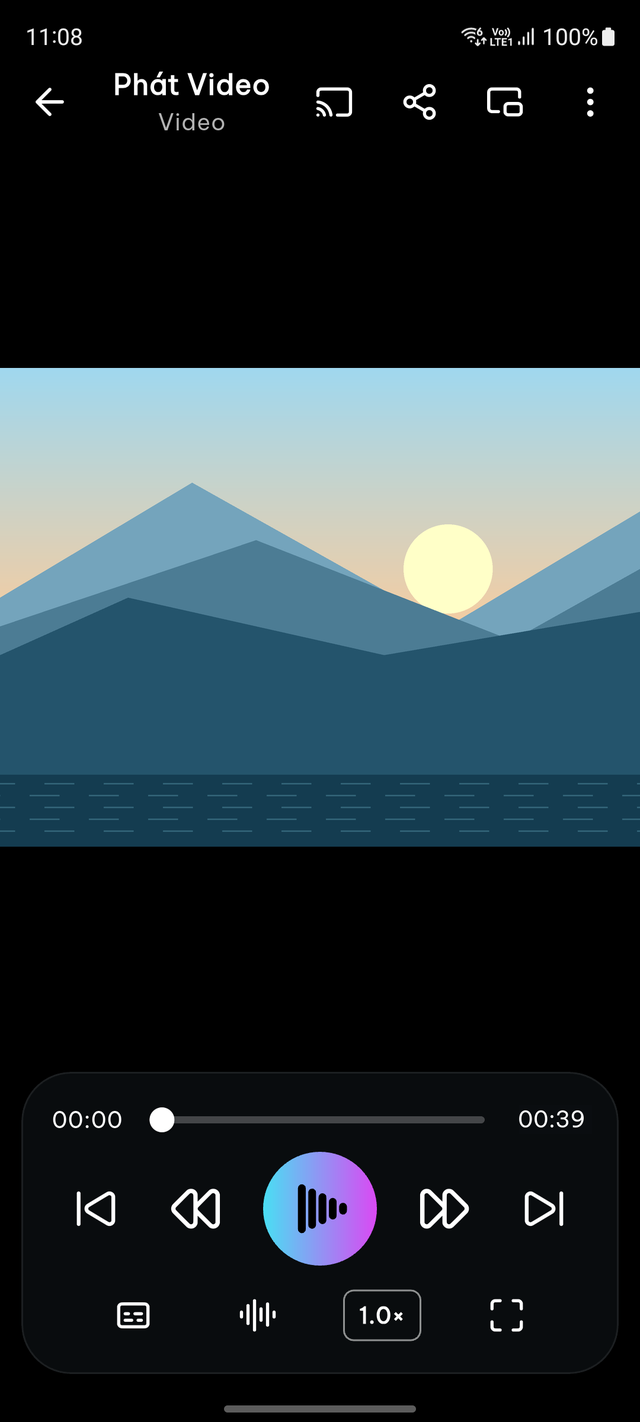
Watching Video
You can select subtitles, change audio tracks, and seek through the video. Swipe gestures allow you to control brightness and volume.
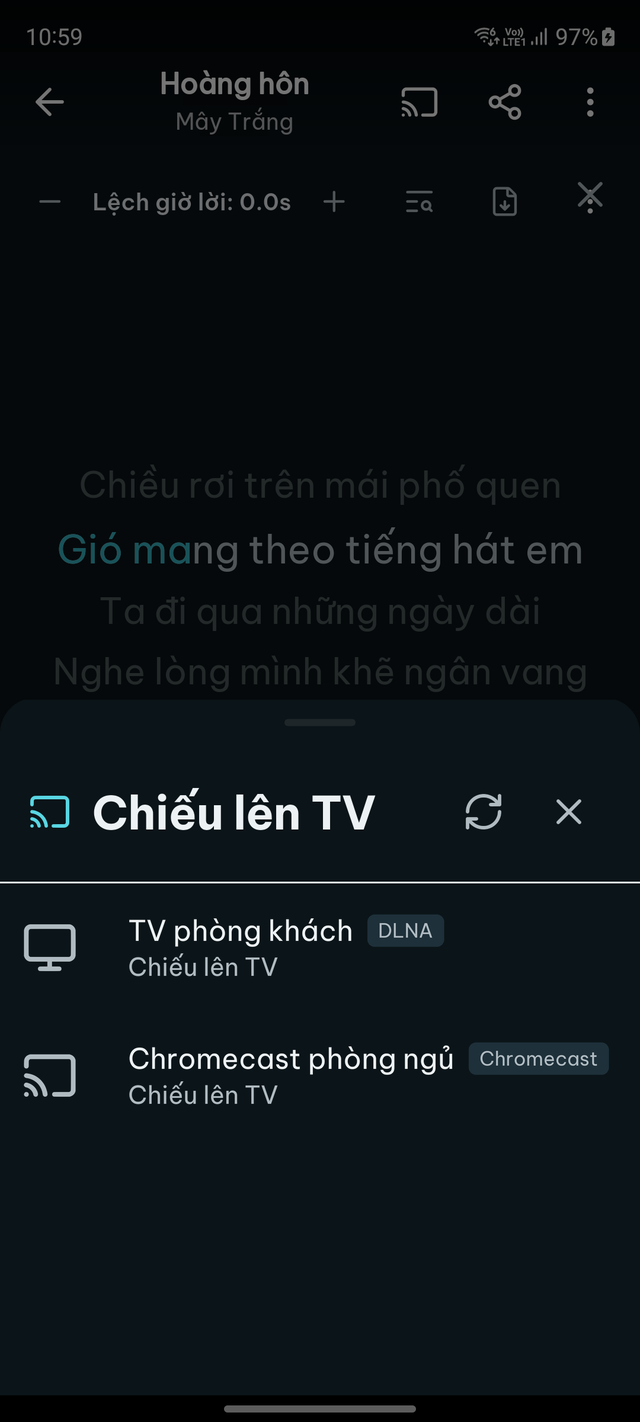
Cast to TV
Tap the Cast icon to play media on your TV. Your phone acts as the remote, and your TV displays the track name, cover art, and lyrics.
Notable Settings
- Privacy Policy: Your data stays on your phone. No accounts, no ads, and only connects online when requested.
- Lyrics Disclaimer: You decide which lyrics to fetch from the internet. You are responsible for the lyrics you use.
- Factory Reset: Resets all settings to default. Your local music and videos are NOT touched. Playlists and favorites will be cleared. Your trial period continues.
Trial & Purchase
Try full features for free.
Buy once, use forever.
No subscriptions, no ads.